


This tutorial demonstrate a simple way to optimize your wordpress plugin for SEO purposes. It is always better to optimize some of your plugin if they are not doing their job properly.
What plugin required to optimize?
As we all know that the most important things should be placed on the header of the page. If our plugin place a script or a style on the header, it is important to bring them down so that search engine don't look at them as important. The most appropriate place is on the footer where the search engine spider prioritize the lowest among other section. ( unless you place your side bar below footer, footer usually is placed as lowest priority).
Identifying wordpress plugin that are not optimize
Identifying wordpress plugin that are not optimized for SEO can be both easy and difficult. If the plugin provided clues for your changes, it will be easily known which plugin has caused this mistake. However, if the instruction have no inserted any code to identify which plugin does the instruction belong, it will be more tricky than usual. In order to do this, i have illustrate it below.
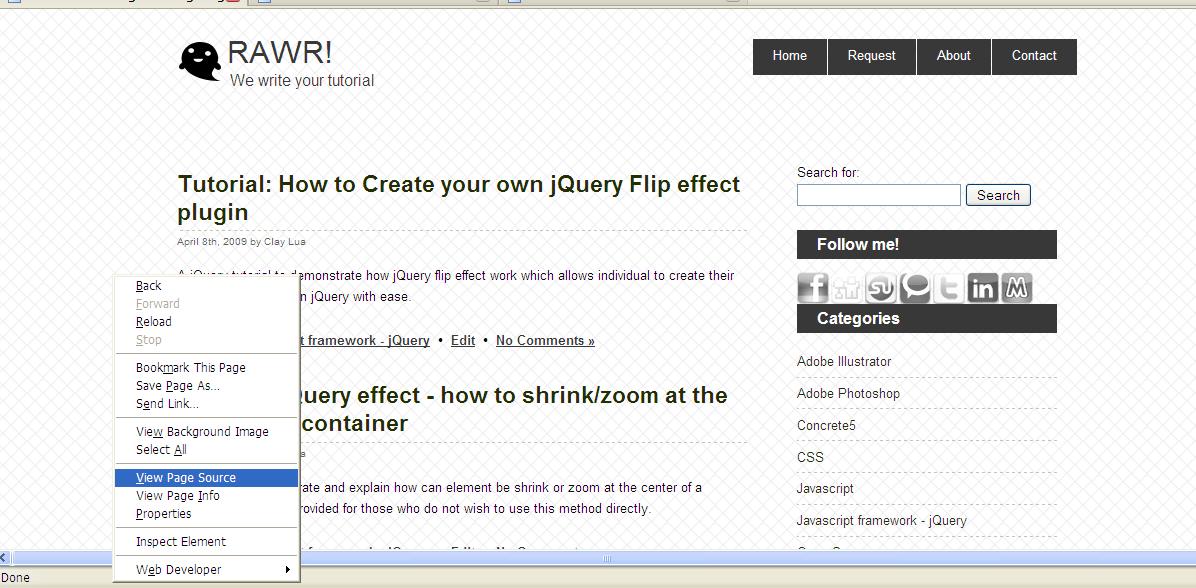
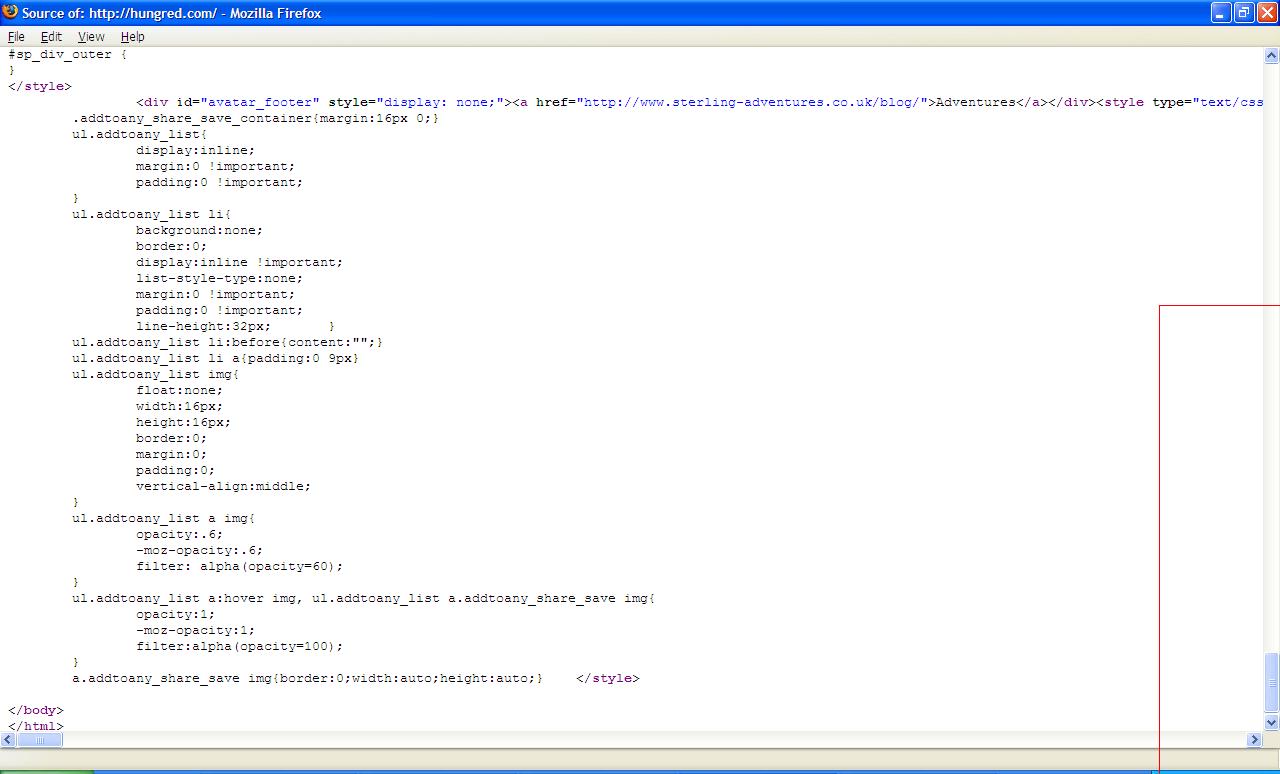
1. Go to your website and right click on your page. Select view source to look at the source of your page to identify any unnecessary instruction that you do not want the search engine spider to see first.
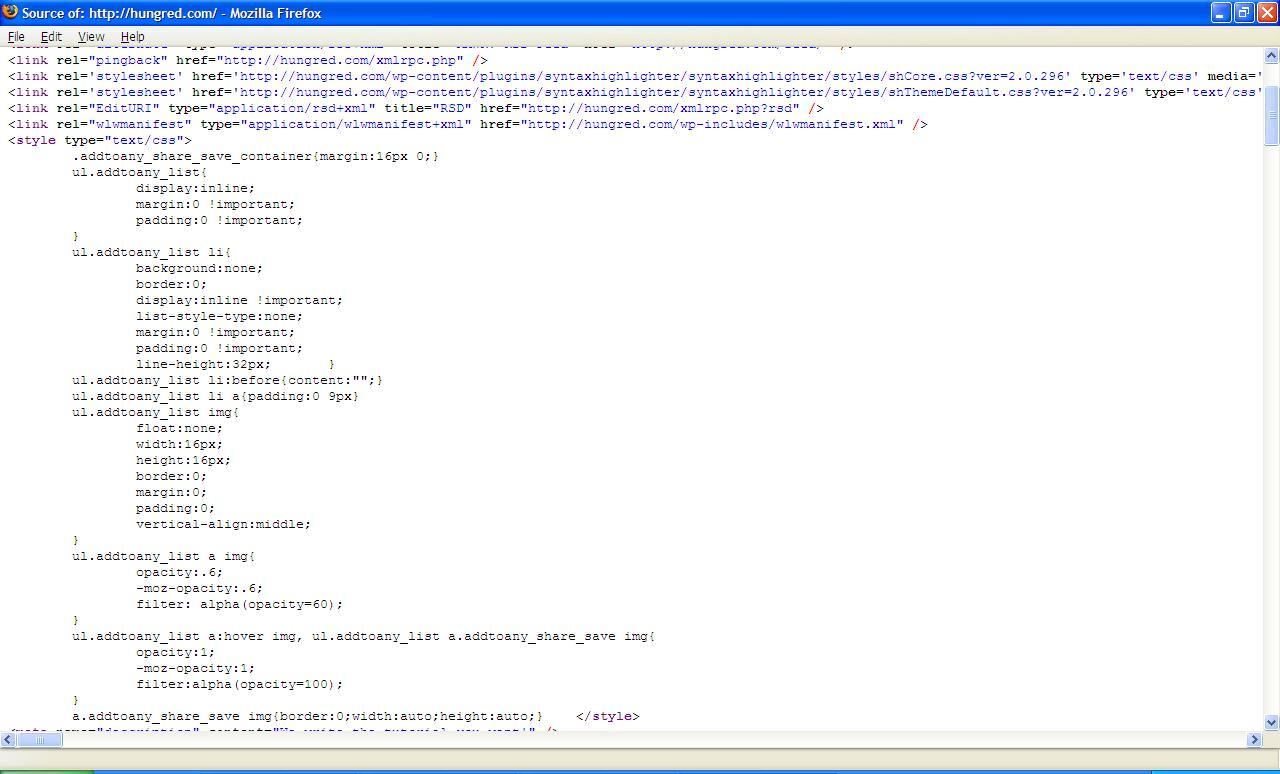
2. notice that the source code i have provided above has a style tag with all its style in it? This is the plugin that should be updated to optimize for SEO. In the style tag, there are classes that indicate that it is from addtoany, with this i can identify that the plugin is "Add to Any: Share/Save/Bookmark Button".
How to optimize my wordpress plugin?
Optimizing your wordpres plugin for SEO is not that difficult. We just have to instruct the affected plugin to list those script or style to the footer as wordpress has provided a method wp_footer while your plugin most probability is using wp_head which caused it to place those unnecessary instruction on the header instead. After we identify our plugin, it is time to move those style sheet to the footer!
3. Go to your wordpress control panel and select plugin->editor->Add to Any: Share/Save/Bookmark Button
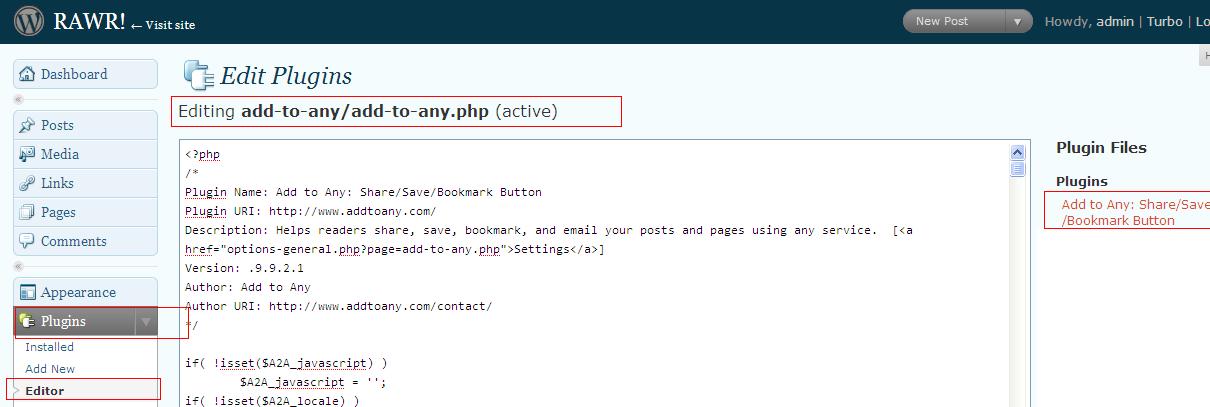
4. press Ctrl-F or edit->find in your browser and search for the word wp_head
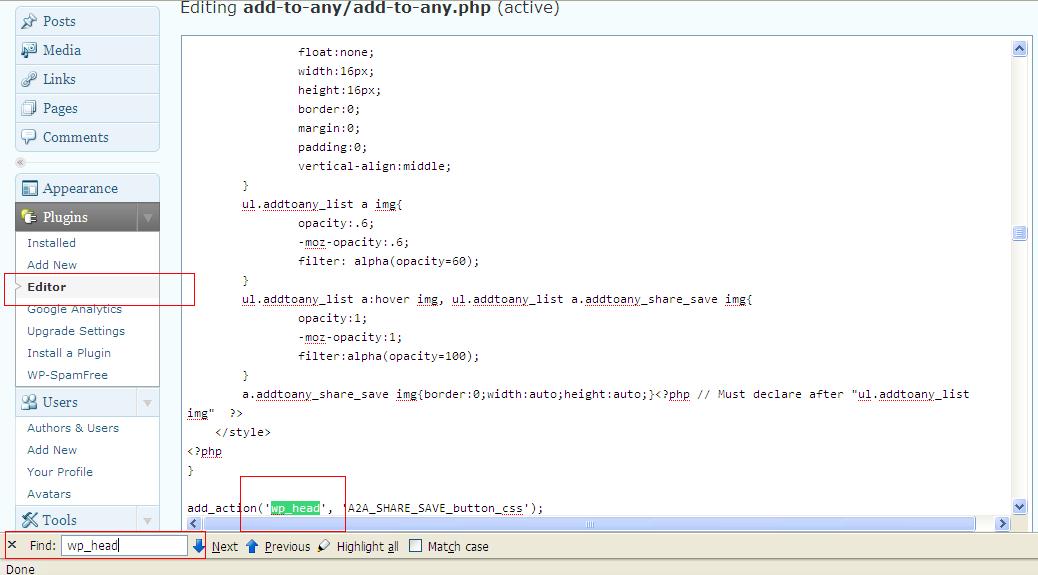
5. change the found wp_head to wp_footer and click update
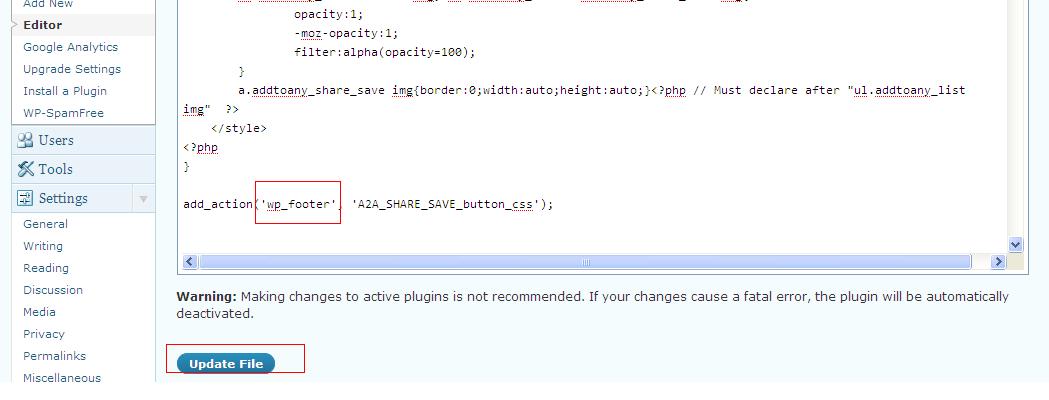
6. search for any other wp_head and change them all to wp_footer if necessary.
7. look at your home page source code again and it should have disappeared and went down to footer.
Note
There are things to take note about when trying to do the above steps. For all style it can be placed on the footer with no problem. However, for those javascript, please check properly before placing javascript or <script> tag to the bottom of the page as it will cause problem for some of the plugin since the methods are being called in the body before your scripts have imported into the page. Therefore, it cannot find those javascript methods if it is placed on the bottom. So we must check that the script has been imported before calling it within the body tag if we want to move the script tag to the bottom of the page.
Great post. It's also useful to optimize your wordpress blog and not just your plugin. If you're not already caching and compressing for lower server load and faster page loads then check this article : http://codytaylor.org/2009/09/optimize-wordpress.html