

Tutorial: How to write or design in chalk with this two technique

1. Fire up your photoshop and open up a workspace, change the background to a color where it fit the color of a blackboard(#33463a)
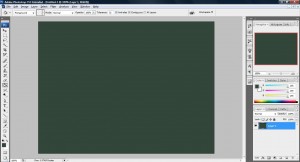
untitled108 300x162 Tutorial: How to write or design in chalk with this two technique

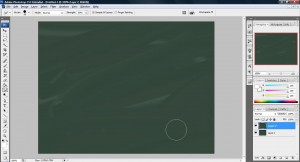
2. Create a new layer and mess up the blackboard so that it look like one! This can be done by using the smudge tool and some line drawn on the board. I used 1 line with a Smudge strength of 89% and a large enough pixel for me to swing continuously on the board to create a nice effect as shown below.
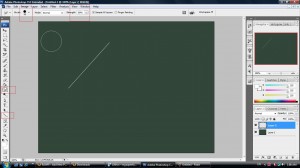
untitled110 300x168 Tutorial: How to write or design in chalk with this two technique

untitled109 300x162 Tutorial: How to write or design in chalk with this two technique

3. Use the Horizontal Type Tools with color (#d7d7d7) and write something on the blackboard. Next, Rasterize it.
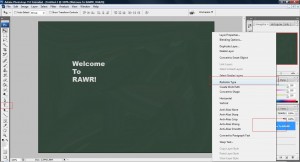
untitled111 300x162 Tutorial: How to write or design in chalk with this two technique

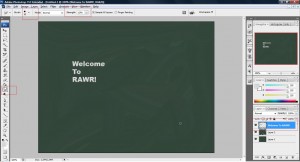
4. Now, use the Smudge tool and rub the text until you get an effect which feel like a chalk.
untitled113 300x162 Tutorial: How to write or design in chalk with this two technique

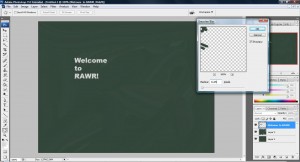
5. Finally, add some blur to it by doing this, Filter->Blur->Gaussian Blur, 2.5 Radius.
untitled112 300x162 Tutorial: How to write or design in chalk with this two technique

OR

if you would like a nice drawing that looks like a chalk drawn you can do this,

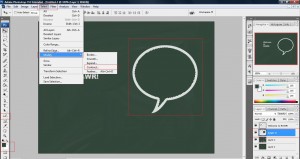
1. Create a new layer and draw a bubble shape in the same color as shown above and contract it by 10px then color it with the blackboard color as shown below,
untitled114 300x159 Tutorial: How to write or design in chalk with this two technique

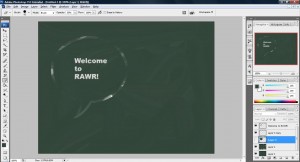
2. Next, take the Eraser tool and adjust its opacity to 50% and start erasing the shape until you get something like this. You can duplicate this image before applying Eraser tool to retry again for a better effect.
untitled115 300x162 Tutorial: How to write or design in chalk with this two technique

Done!


Like this post? Share it!

http://hungred.com/wp-content/plugins/sociofluid/images/digg_48.png http://hungred.com/wp-content/plugins/sociofluid/images/reddit_48.png http://hungred.com/wp-content/plugins/sociofluid/images/stumbleupon_48.png http://hungred.com/wp-content/plugins/sociofluid/images/delicious_48.png http://hungred.com/wp-content/plugins/sociofluid/images/furl_48.png http://hungred.com/wp-content/plugins/sociofluid/images/technorati_48.png http://hungred.com/wp-content/plugins/sociofluid/images/google_48.png http://hungred.com/wp-content/plugins/sociofluid/images/myspace_48.png http://hungred.com/wp-content/plugins/sociofluid/images/facebook_48.png http://hungred.com/wp-content/plugins/sociofluid/images/twitter_48.png

No related posts.

This entry was posted on Monday, March 16th at 1:53 AM and is filed under Adobe Photoshop, How-to. You can follow any responses to this entry through the RSS 2.0 feed. Both comments and pings are currently closed.

Comments are automatic closed after certain period. Please send the author an email instead.