

Tutorial: How to remove background image using pen tool

I found out that using a pen tool to remove a simple drawing is the best and fastest way of achieving this goal.

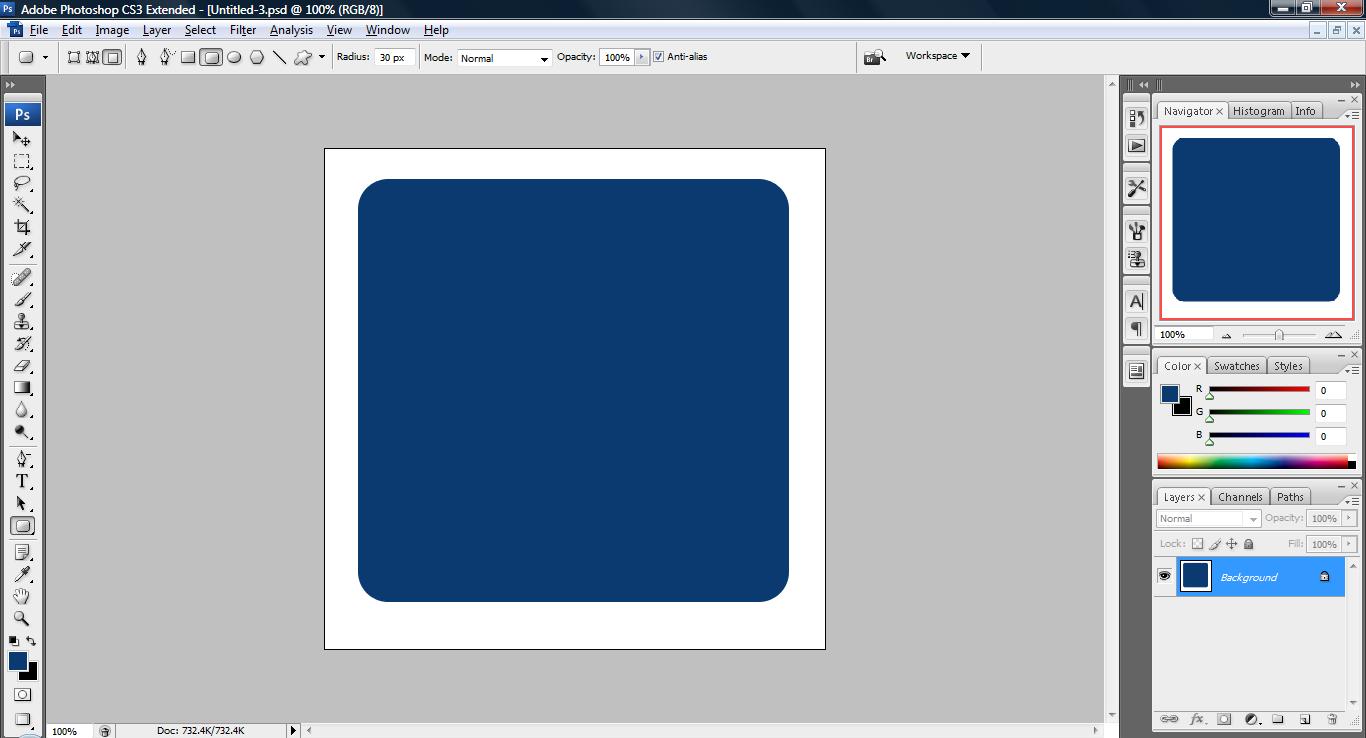
1. Fire up your photoshop and open an image as shown below.
untitled65 300x162 Tutorial: How to remove background image using pen tool

2. Use the Pen tool and highlight the area you wish to extract and on the Layer Palette click on the Paths section and click on ‘Load path as a selection’.

untitled68 300x162 Tutorial: How to remove background image using pen tool

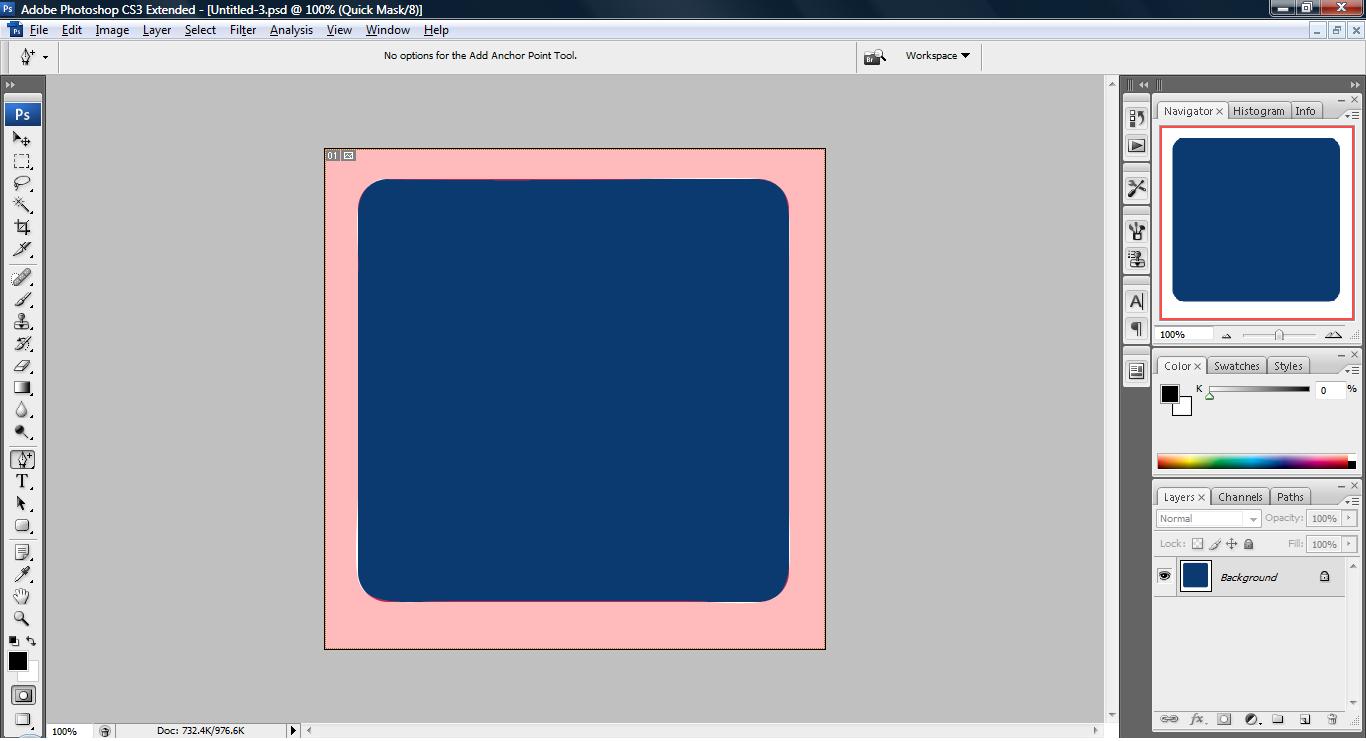
3. press Q to verify whether there is any problem with the image you have highlighted.
untitled69 300x162 Tutorial: How to remove background image using pen tool

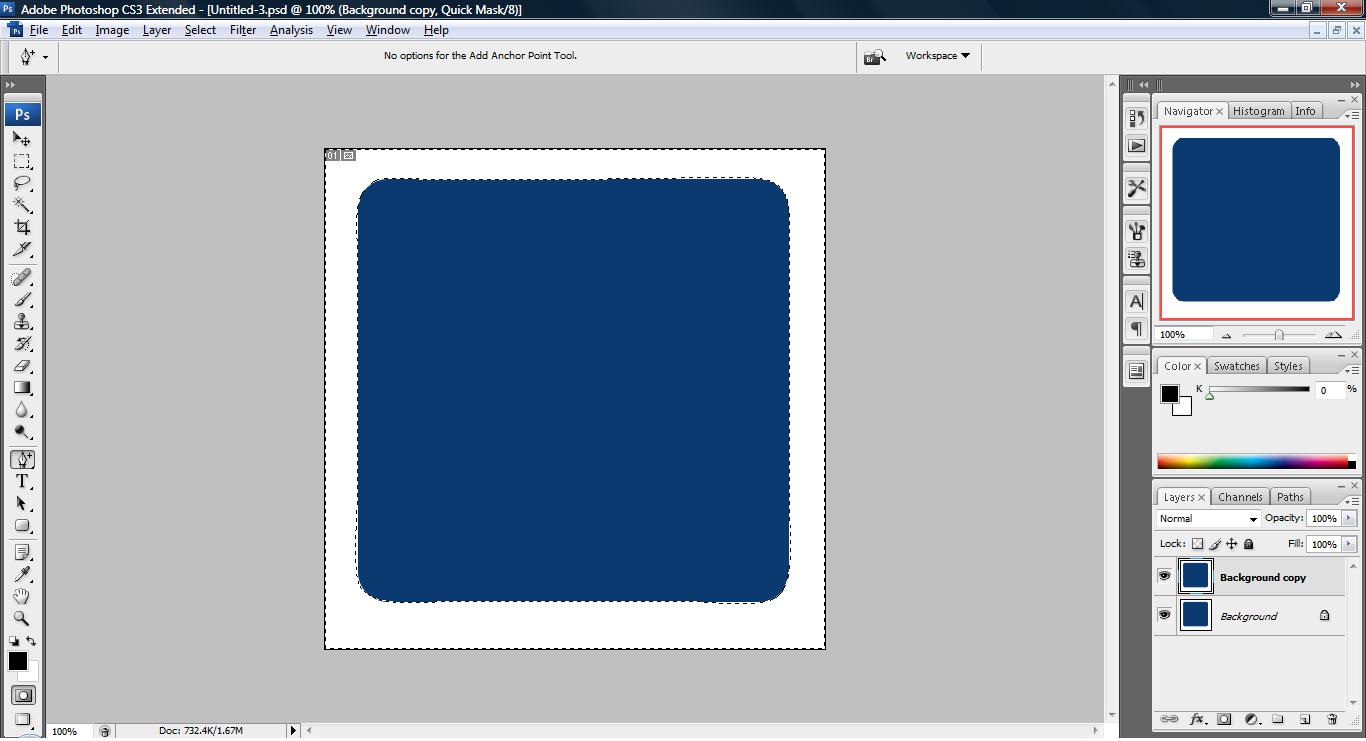
4. If there is no much problem,  click Select->Inverse duplicate another layer. This will select all other image other than the one you have highlighted. P.S: The work path on the Path section must be clicked and the dotted line must be shown before inverse can be click.
untitled70 300x162 Tutorial: How to remove background image using pen tool

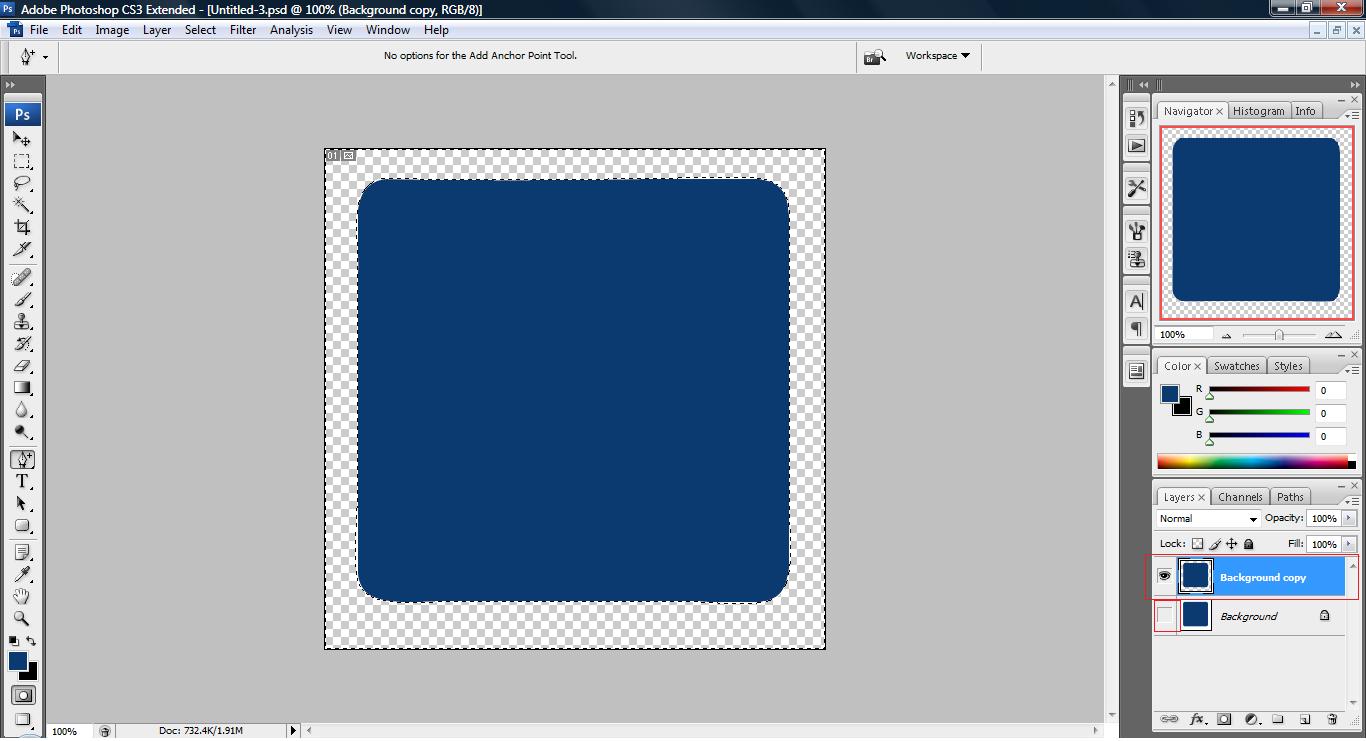
5. Once a duplicate has been created, press Ctrl+X or delete button on the keyboard.
untitled71 300x162 Tutorial: How to remove background image using pen tool


Like this post? Share it!

http://hungred.com/wp-content/plugins/sociofluid/images/digg_48.png http://hungred.com/wp-content/plugins/sociofluid/images/reddit_48.png http://hungred.com/wp-content/plugins/sociofluid/images/stumbleupon_48.png http://hungred.com/wp-content/plugins/sociofluid/images/delicious_48.png http://hungred.com/wp-content/plugins/sociofluid/images/furl_48.png http://hungred.com/wp-content/plugins/sociofluid/images/technorati_48.png http://hungred.com/wp-content/plugins/sociofluid/images/google_48.png http://hungred.com/wp-content/plugins/sociofluid/images/myspace_48.png http://hungred.com/wp-content/plugins/sociofluid/images/facebook_48.png http://hungred.com/wp-content/plugins/sociofluid/images/twitter_48.png

No related posts.

This entry was posted on Thursday, March 12th at 2:01 AM and is filed under Adobe Photoshop, How-to. You can follow any responses to this entry through the RSS 2.0 feed. Both comments and pings are currently closed.

One User Commented

Comments are automatic closed after certain period. Please send the author an email instead.

Pingback/Trackback: show

  1. [...] Next, we set the opacity to 60% on the Layer Palette and use our pen tools technique to remove the background on the lower part of the [...]