
Tutorial: How to make a neat button

1. Fire up your photoshop and open a workspace around the size of 250×100 with transparent background and draw a blue  rounded rectangle.

untitled56 300x162 Tutorial: How to make a neat button

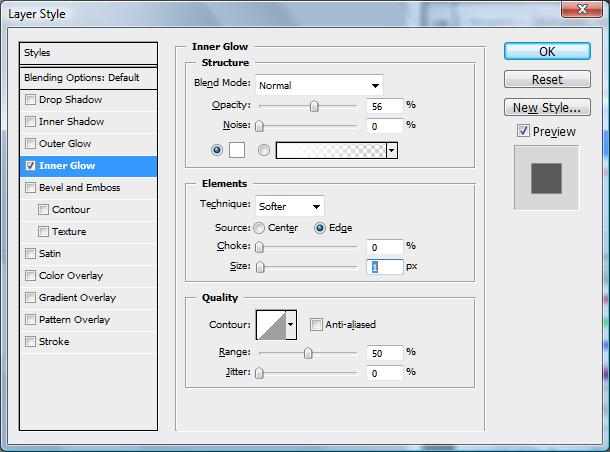
2. Duplicate another layer and remove the background of this rounded rectangle if you did not create a workspace with transparent background, search for ‘Add a layer style’ on the bottom of the Layer palette and select ‘Inner Glow’. Apply the setting as shown on the image.
untitled57 300x222 Tutorial: How to make a neat button

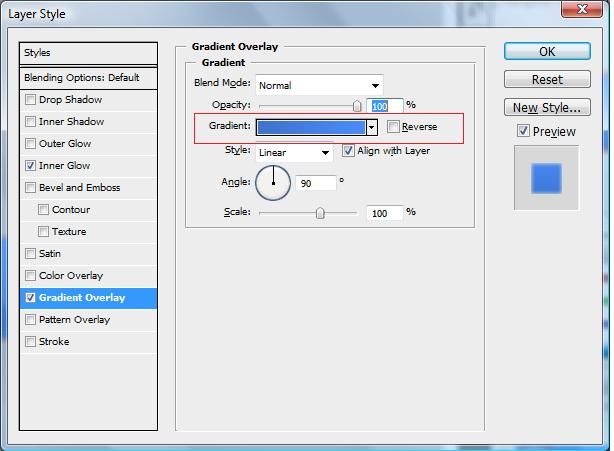
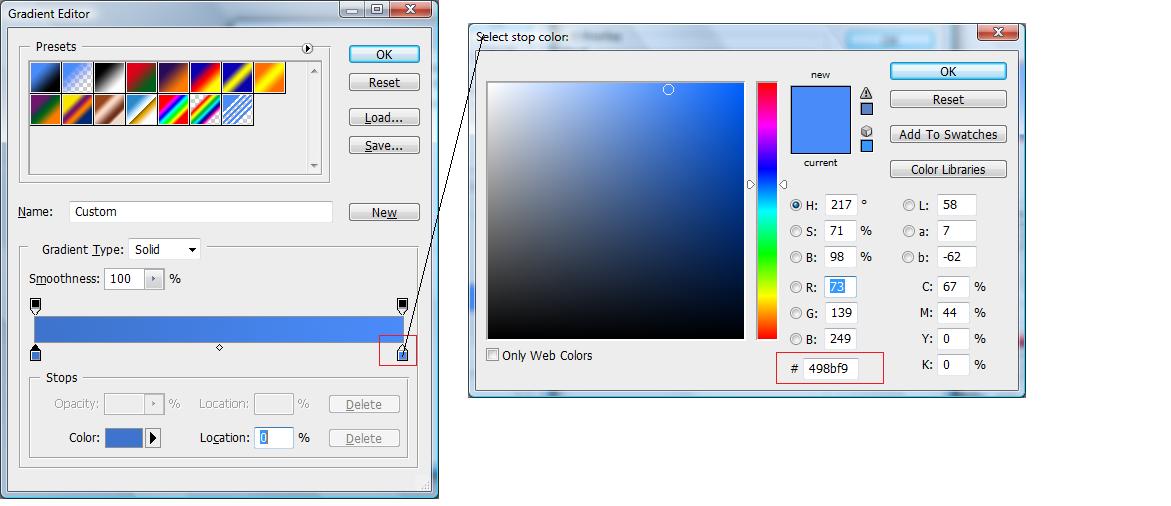
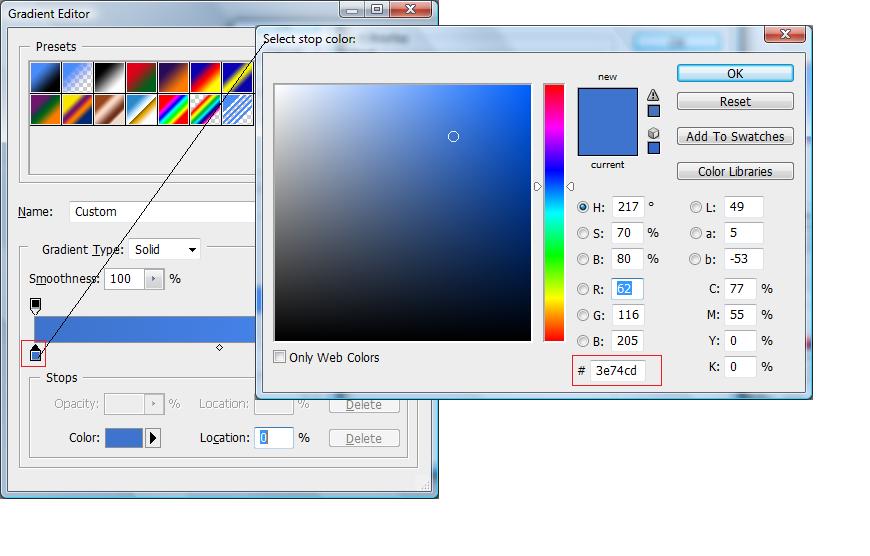
3. Click on ‘Gradient Overlay’, double click on ‘Gradient:’ and Apply the setting as shown below.
untitled60 300x220 Tutorial: How to make a neat button

untitled58 300x191 Tutorial: How to make a neat button

untitled59 299x129 Tutorial: How to make a neat button

Double click the red box and change the color as shown above.

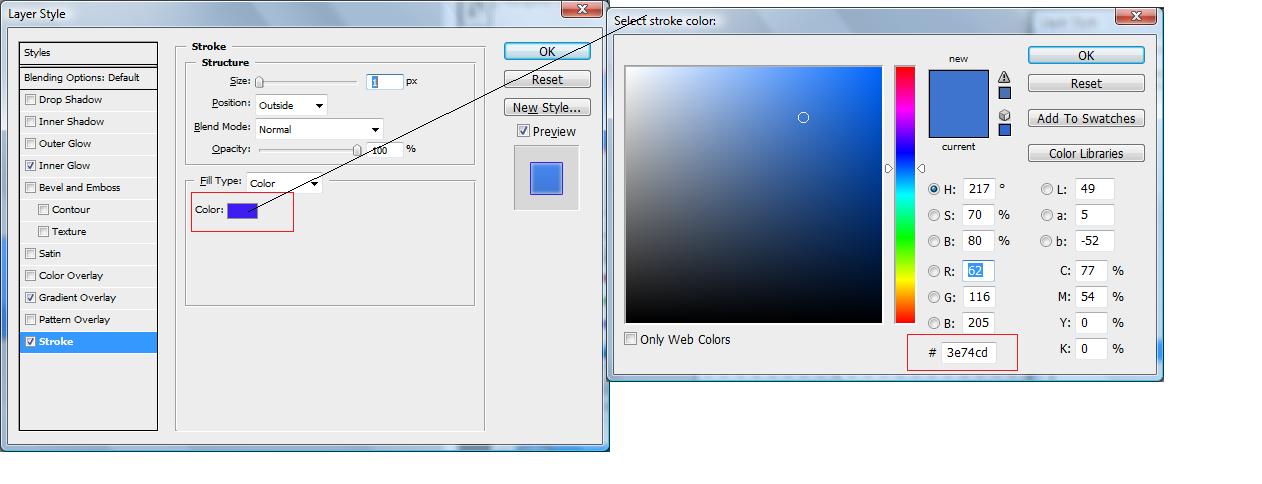
4. Click on ‘Stoke’ and apply the setting shown below and click ‘OK’.

untitled62 300x115 Tutorial: How to make a neat button

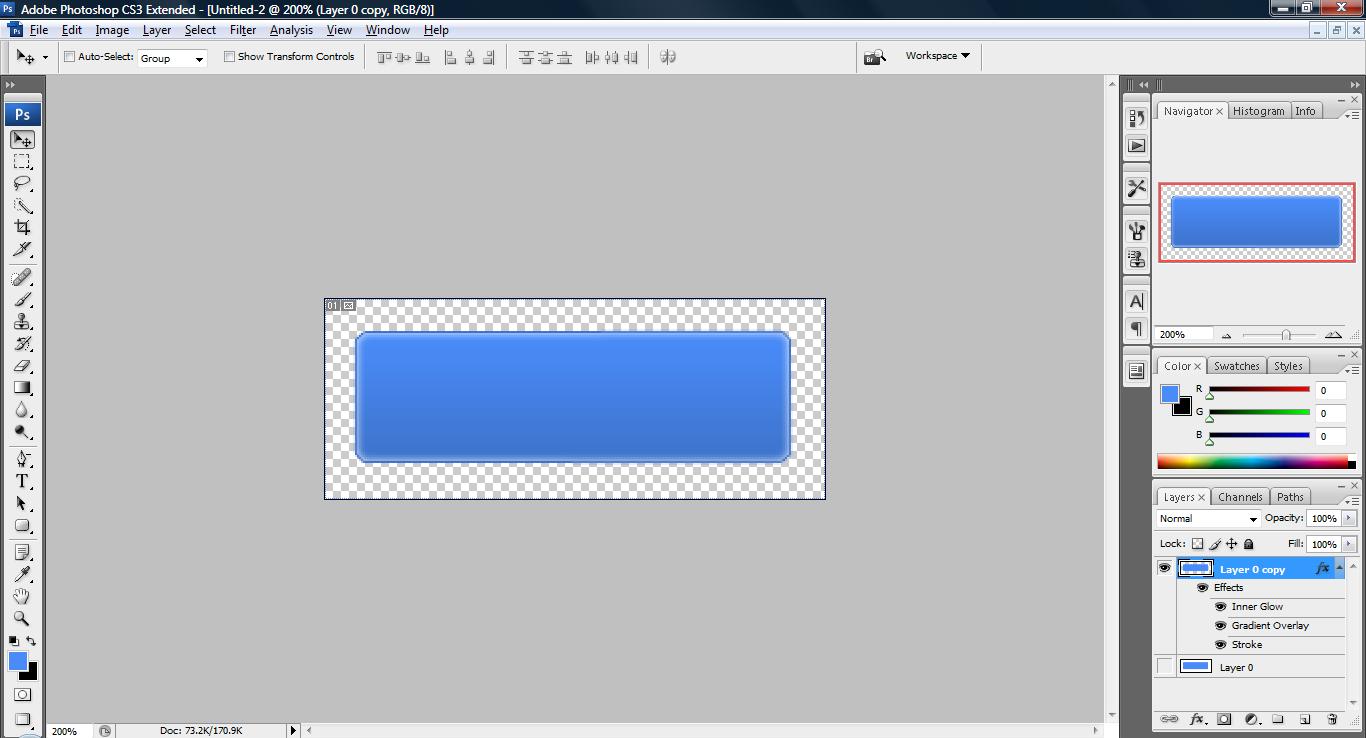
5. You will see something like this.

untitled61 300x162 Tutorial: How to make a neat button

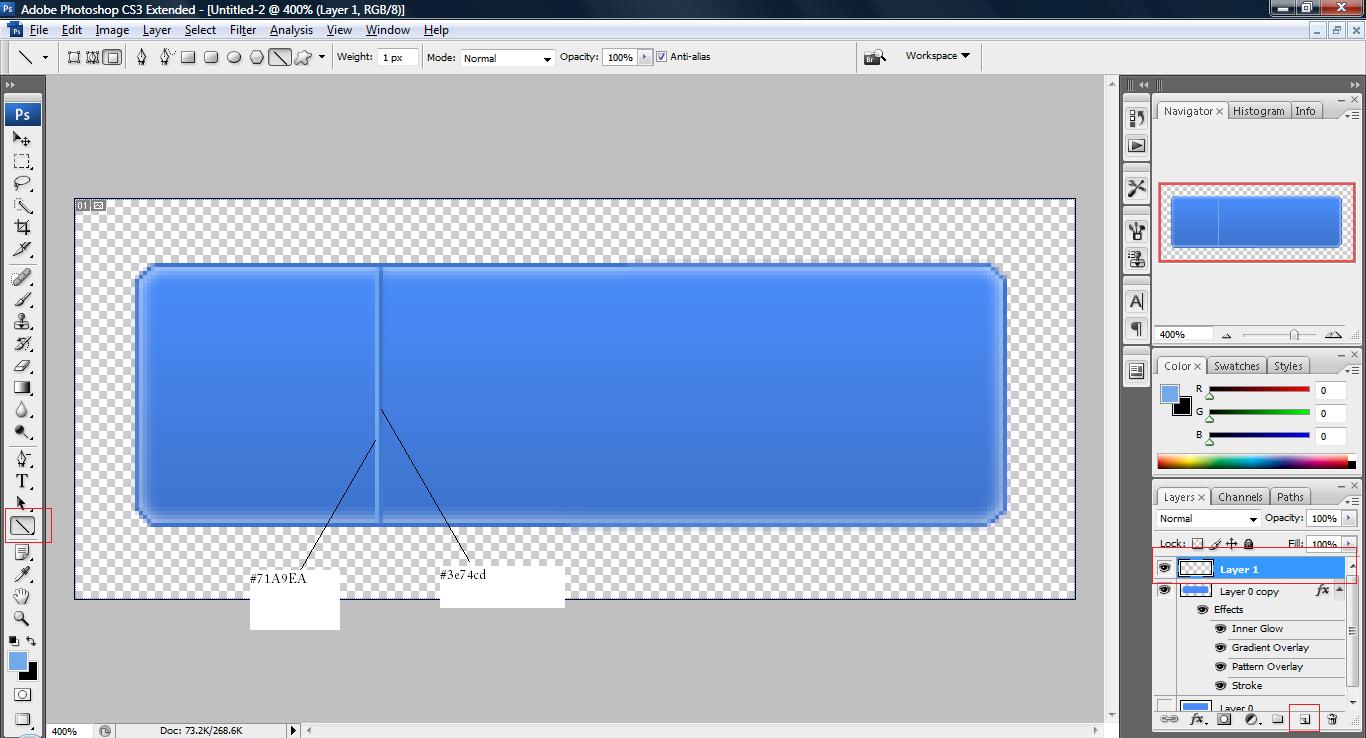
6. Create a new layer by clicking ‘Create a new layer’ icon on the Layer Palette and draw two line using the ‘Line Tool’ as shown below.

untitled63 300x162 Tutorial: How to make a neat button

7. Add on some text on the button and its all good to go!

untitled64 300x162 Tutorial: How to make a neat button


Like this post? Share it!

digg 48 Tutorial: How to make a neat button reddit 48 Tutorial: How to make a neat button stumbleupon 48 Tutorial: How to make a neat button delicious 48 Tutorial: How to make a neat button furl 48 Tutorial: How to make a neat button technorati 48 Tutorial: How to make a neat button google 48 Tutorial: How to make a neat button myspace 48 Tutorial: How to make a neat button facebook 48 Tutorial: How to make a neat button twitter 48 Tutorial: How to make a neat button
share save 171 16 Tutorial: How to make a neat button

No related posts.

About Clay

I am Clay who is the main writer for this website. I own a small web hosting company in Malaysia and i'm available to be hired as individual contractor on elance. You can find me on twitter.
This entry was posted in Adobe Photoshop, How-to and tagged . Bookmark the permalink.

Comments are closed.