
Tutorial: How to create a curved border

Here is a simple photo tutorial on curving the border of a rectangular shape image.

1. Fire your photoshop and open a rectangle image such as  the example shown below

untitled26 300x162 Tutorial: How to create a curved border

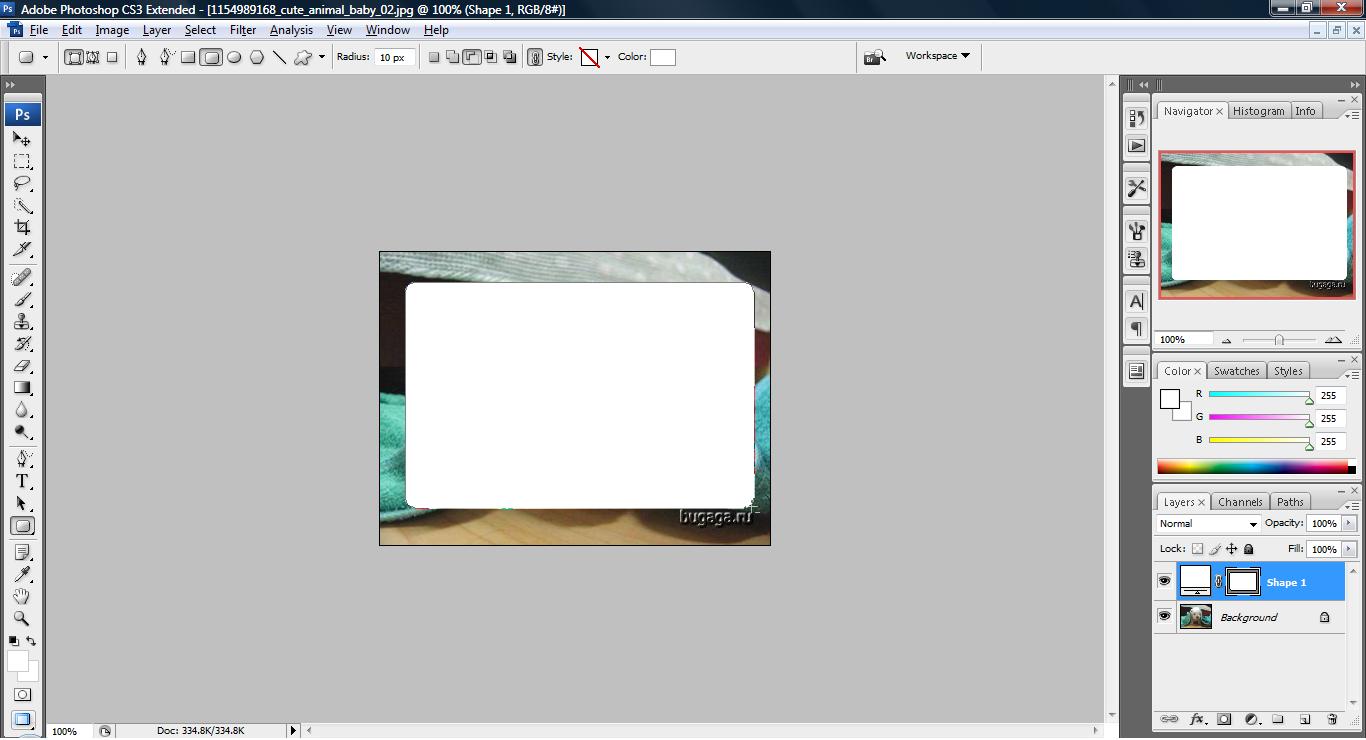
2. draw a rectangle, with the rounded rectangle tool. The rectangle will be place where the image shows

untitled28 300x168 Tutorial: How to create a curved border

untitled29 300x162 Tutorial: How to create a curved border

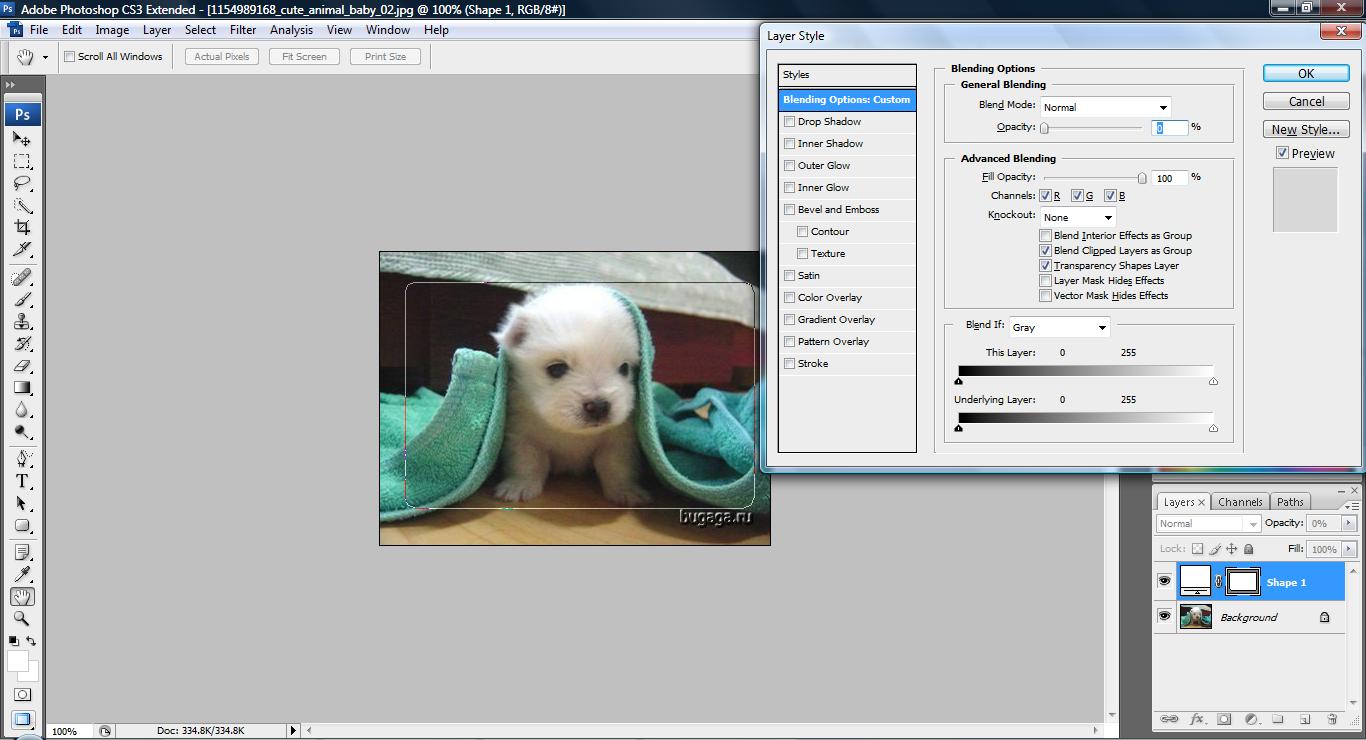
3. Double click on the layer with the rectangle and the layer style panel will prompt out. In the Advanced Blending area, slide the Fill Opacity percentage down to 0% and click ‘OK’.

untitled30 300x162 Tutorial: How to create a curved border

4. Back in the Layers palette, select the ‘background’ image(the dog) and right click it. Select duplicate layer and click ‘OK’.

untitled32 300x162 Tutorial: How to create a curved border

You should get a new layer of the image.

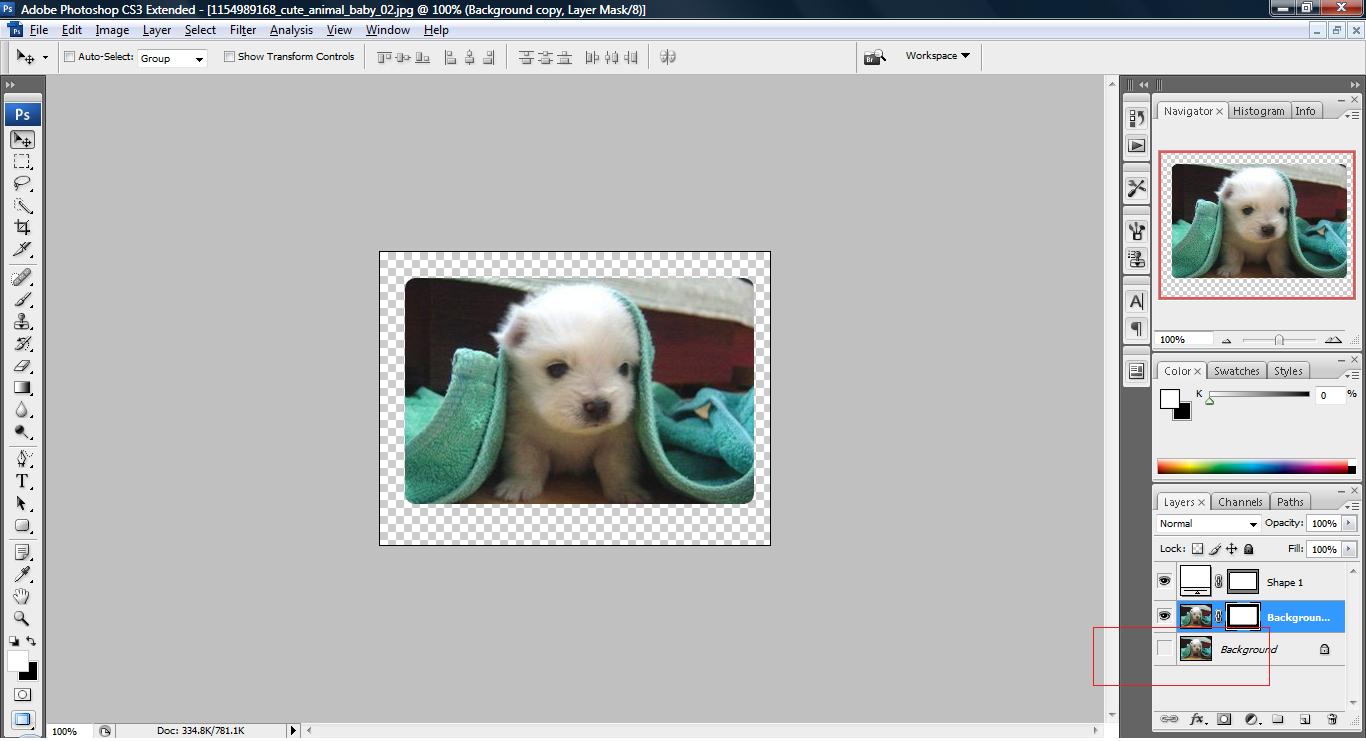
5. In the layer palette,  search for this camera look like icon, ‘Add layer mask’, and click on it. Be sure that the ‘background copy’ is selected and you will get the following display.

untitled33 300x162 Tutorial: How to create a curved border

6. now turn off ‘background’ image visibility view to off. viola~

untitled34 300x162 Tutorial: How to create a curved border


Like this post? Share it!

digg 48 Tutorial: How to create a curved border reddit 48 Tutorial: How to create a curved border stumbleupon 48 Tutorial: How to create a curved border delicious 48 Tutorial: How to create a curved border furl 48 Tutorial: How to create a curved border technorati 48 Tutorial: How to create a curved border google 48 Tutorial: How to create a curved border myspace 48 Tutorial: How to create a curved border facebook 48 Tutorial: How to create a curved border twitter 48 Tutorial: How to create a curved border
share save 171 16 Tutorial: How to create a curved border

No related posts.

About Clay

I am Clay who is the main writer for this website. I own a small web hosting company in Malaysia and i'm available to be hired as individual contractor on elance or odesk. You can find me on twitter.
This entry was posted in Adobe Photoshop, How-to and tagged . Bookmark the permalink.

Comments are closed.