
Tutorial: How to add that glow on your button with various technique

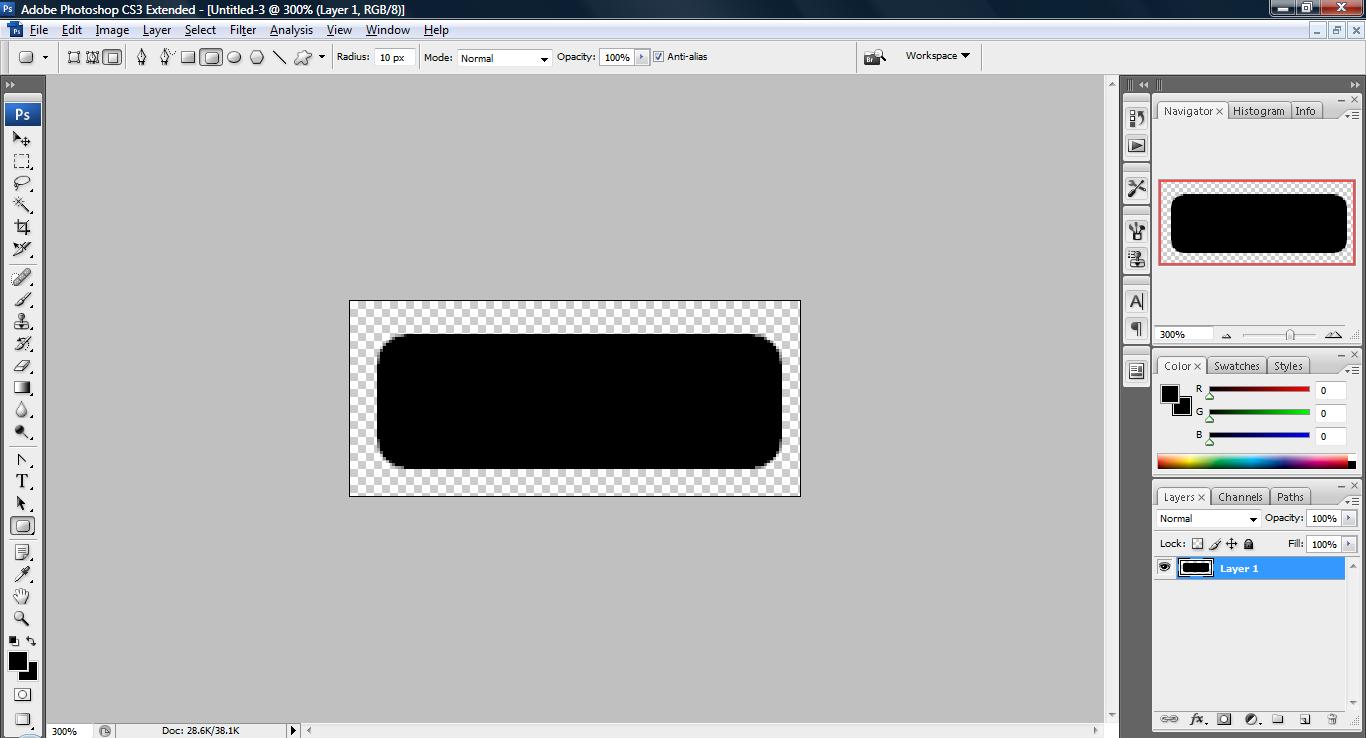
1. Fire up your photoshop and open up a workspace of the size 150, 65 with background transparent and draw a rounded rectangle as shown below.
untitled91 300x162 Tutorial: How to add that glow on your button with various
technique

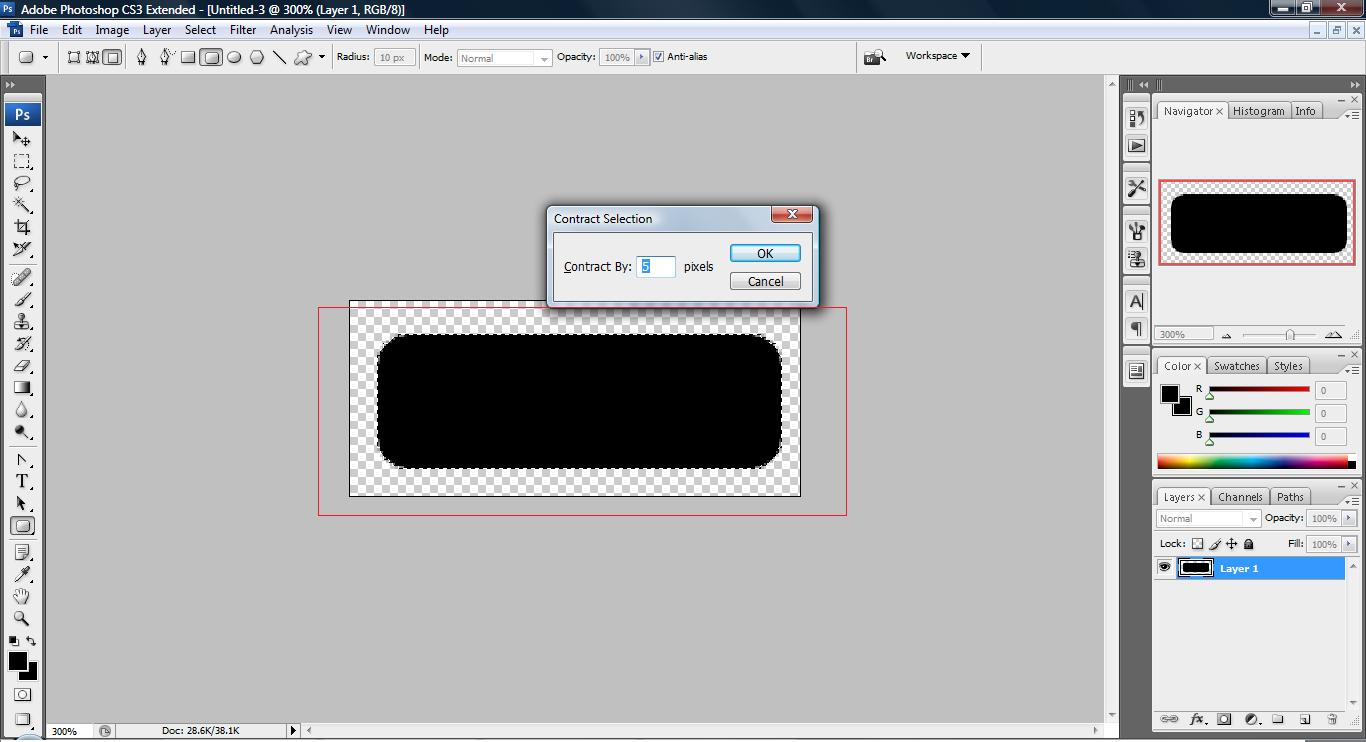
2. Most of the technique to create a glow is to add a layer on top of the picture and gradient it with white and reduce its opacity. i will show two technique to do this. After we created the workspace as shown above, do a selection on the existing layer by clicking ‘Ctrl+Click’ on the layer. (selection means to select the layer) and click Select->Modify->Contract to reduce the size by 5px as illustrate below,

untitled92 300x162 Tutorial: How to add that glow on your button with various
technique

untitled94 300x162 Tutorial: How to add that glow on your button with various
technique

The red box indicate selection.

4. Now, create a new layer and paint it white using ‘Paint Bucket Tool’.

untitled96 300x162 Tutorial: How to add that glow on your button with various
technique

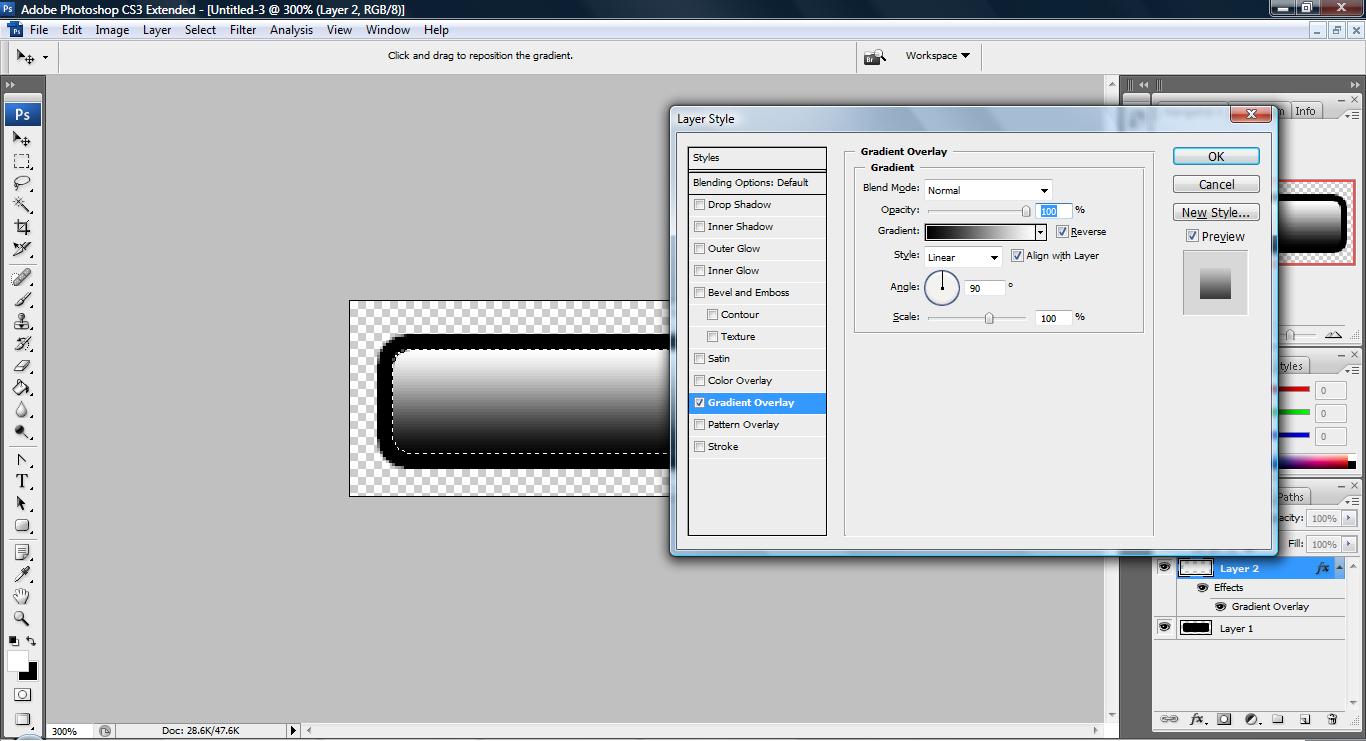
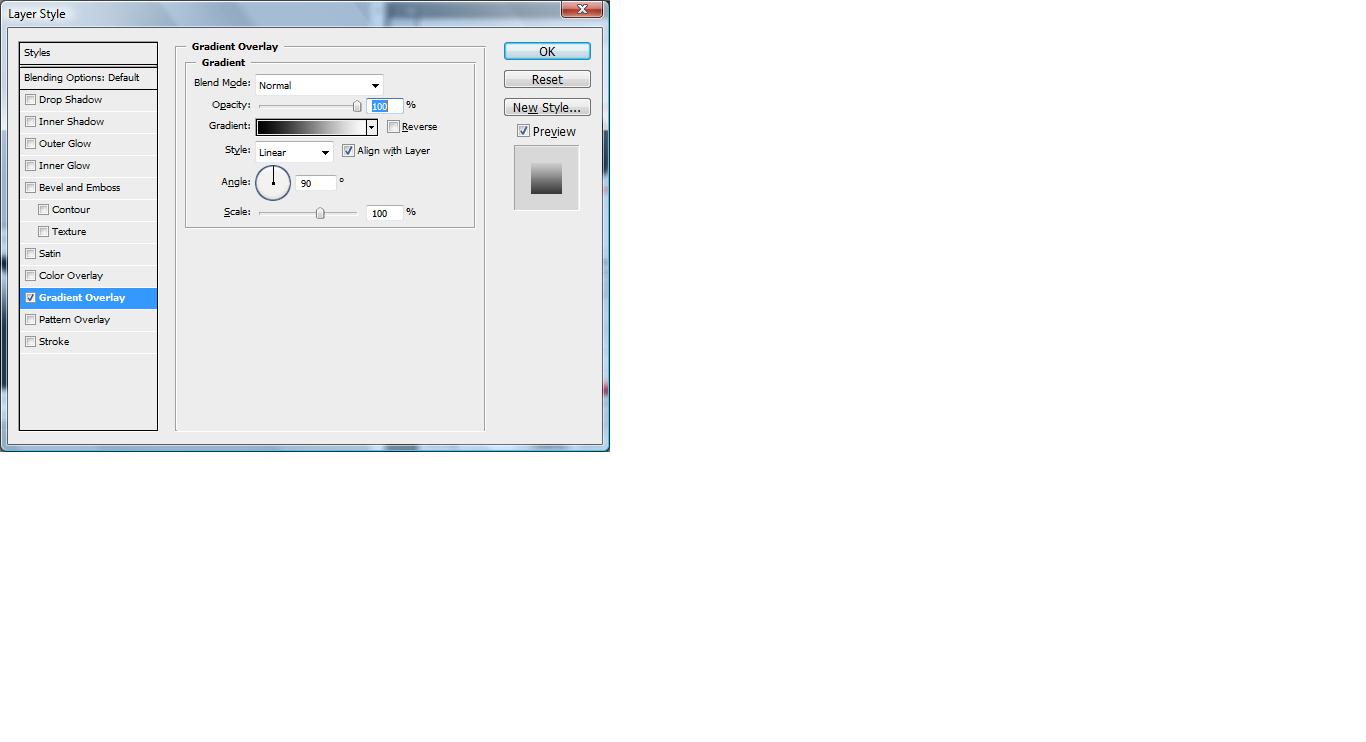
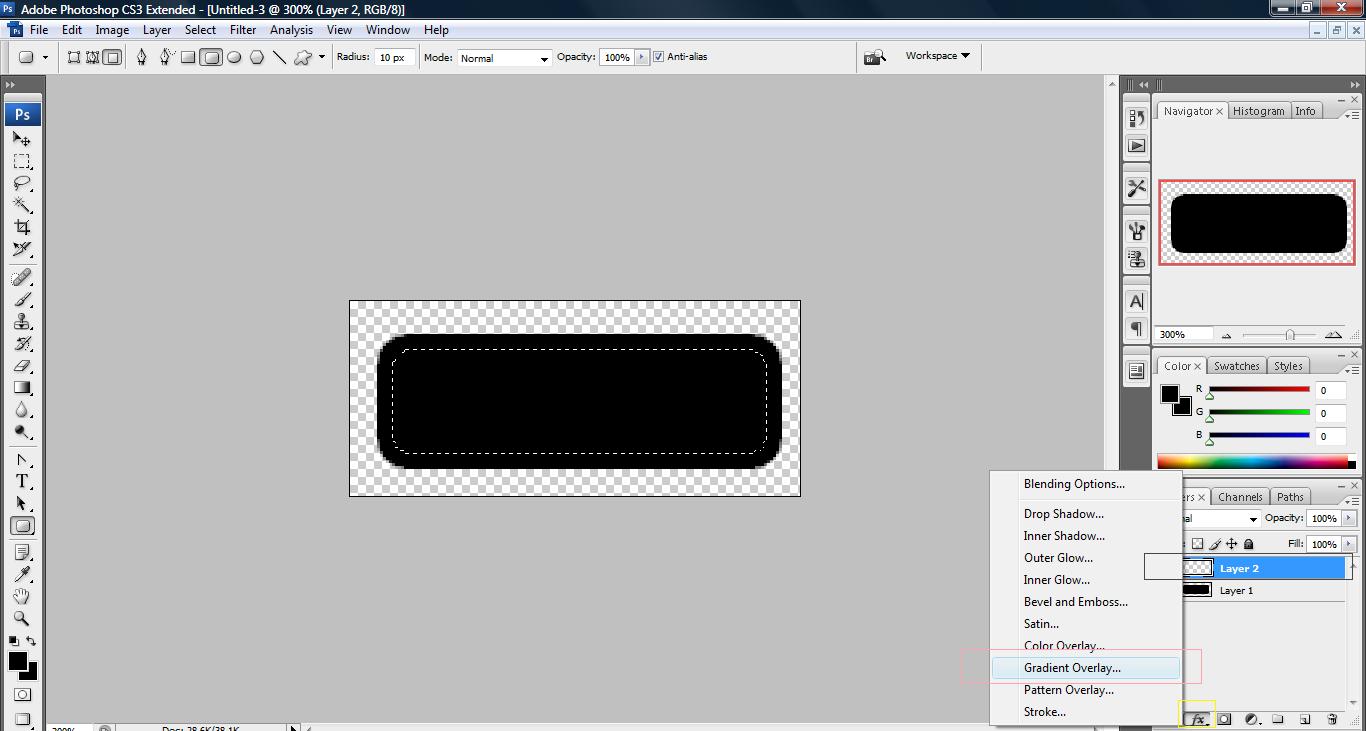
3. Now, on the new layer, look for the ‘Add a layer style’ icon and click on Gradient overlay and adjust the setting as shown below.
untitled95 300x160 Tutorial: How to add that glow on your button with various
technique

untitled97 300x162 Tutorial: How to add that glow on your button with various
technique

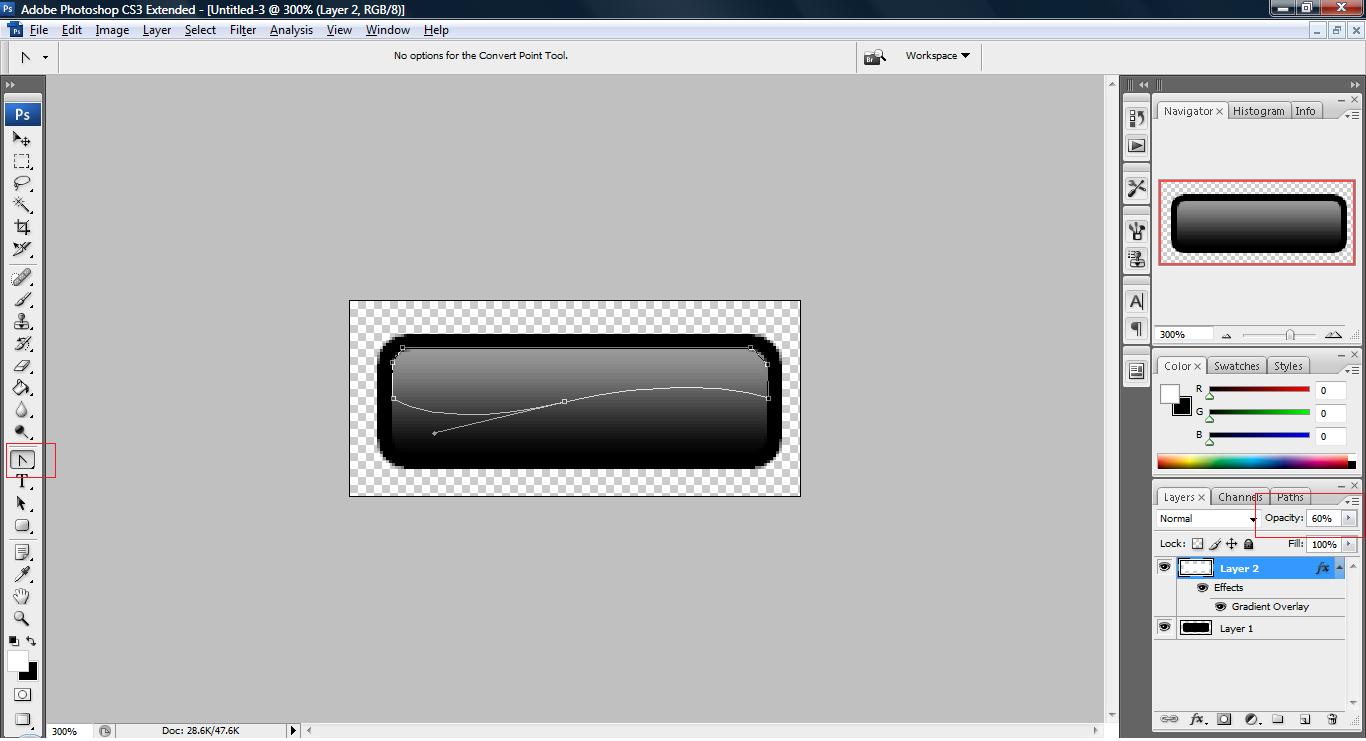
4. Next, we set the opacity to 60% on the Layer Palette and use our pen tools technique to remove the background on the lower part of the layer.
untitled98 300x162 Tutorial: How to add that glow on your button with various
technique

5. This way you get your top glow with some curve style.

untitled99 300x162 Tutorial: How to add that glow on your button with various
technique

6. With some style apply on the original layer, you can get a button such as the one shown below,

untitled101 300x162 Tutorial: How to add that glow on your button with various
technique

So this is the first technique use to add glow on your button the next one is shown below,

2. After you have done point 1., create a new layer and draw another white box on top of the rounded triangle. Look for the ‘Add a style layer’ icon and click on ‘Gradient Overlay’ and follow the setting below,

untitled102 300x162 Tutorial: How to add that glow on your button with various
technique

untitled103 300x162 Tutorial: How to add that glow on your button with various
technique

play with the gradient bar if you want to create different effects.

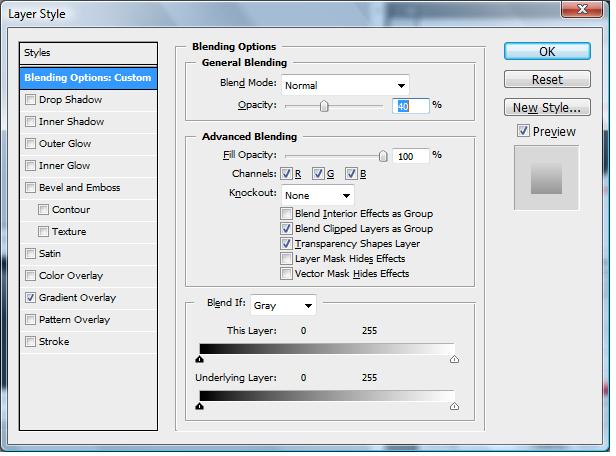
3. In blending option apply the setting as shown below,
untitled104 300x222 Tutorial: How to add that glow on your button with various
technique

4. You will have something like this,

untitled105 300x162 Tutorial: How to add that glow on your button with various
technique

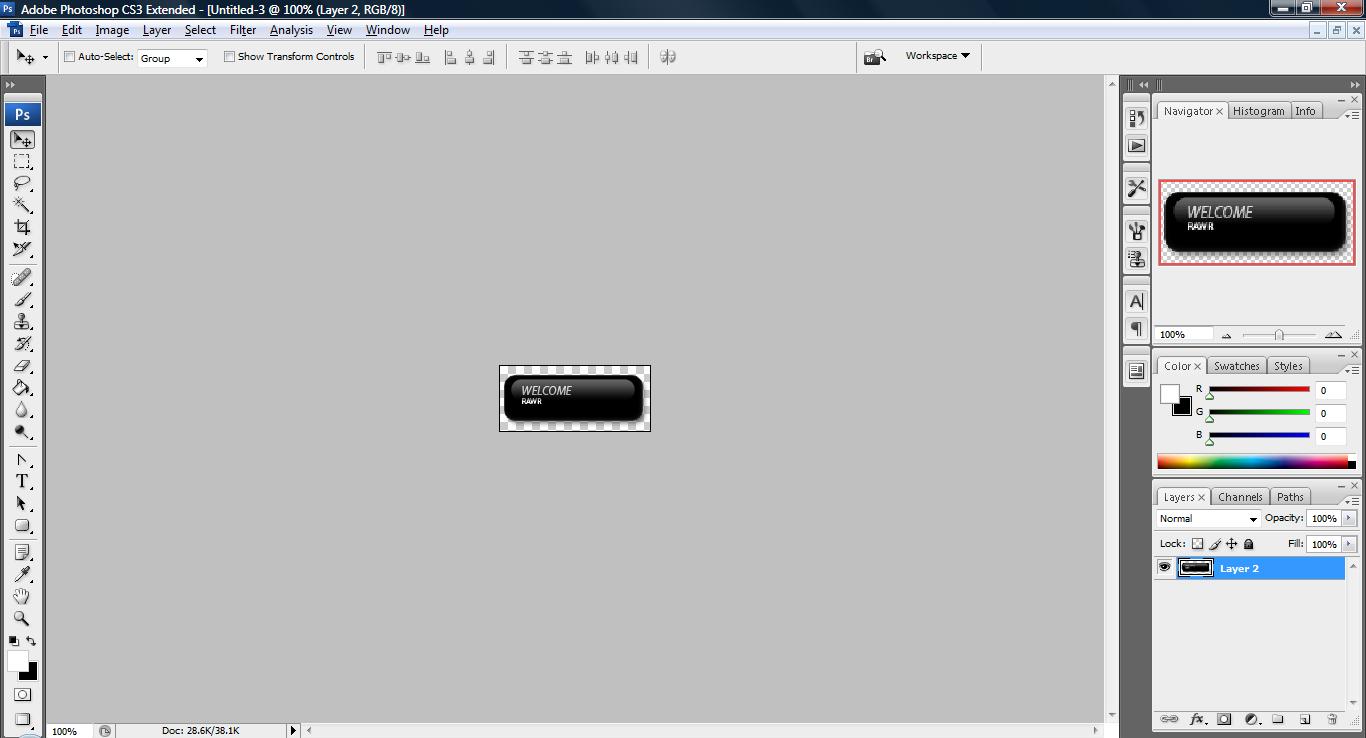
5. if you style it a bit, it will produce something like this
untitled106 300x162 Tutorial: How to add that glow on your button with various
technique

6. And so on~

I’m really only demonstrating the various way of adding glow to your button and if you notice, only the methods used are different but the same thing apply on the image(white opacity object). Once you learn some of these tricks, you can create any kind of button you desire.


Like this post? Share it!

digg 48 Tutorial: How to add that glow on your button with various
technique reddit 48 Tutorial: How to add that glow on your button with various
technique stumbleupon 48 Tutorial: How to add that glow on your button with various
technique delicious 48 Tutorial: How to add that glow on your button with various
technique furl 48 Tutorial: How to add that glow on your button with various
technique technorati 48 Tutorial: How to add that glow on your button with various
technique google 48 Tutorial: How to add that glow on your button with various
technique myspace 48 Tutorial: How to add that glow on your button with various
technique facebook 48 Tutorial: How to add that glow on your button with various
technique twitter 48 Tutorial: How to add that glow on your button with various
technique
share save 171 16 Tutorial: How to add that glow on your button with various
technique

No related posts.

About Clay

I am Clay who is the main writer for this website. I own a small web hosting company in Malaysia and i'm available to be hired as individual contractor on elance or odesk. You can find me on twitter.
This entry was posted in Adobe Photoshop, How-to. Bookmark the permalink.

One Response to Tutorial: How to add that glow on your button with various technique

  1. Pingback: Tutorial: How to add button image to a link | RAWR!