

How to draw a rainbow with Adobe Illustrator

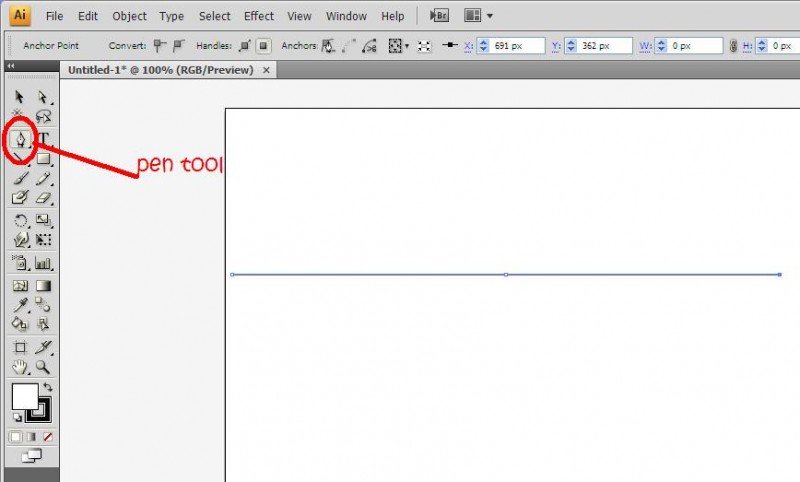
straight line with illustrator using pen tool

1. First, using the pen tool, draw a straight line with three anchors. I had a radius of 297 px so a total distance of 594px
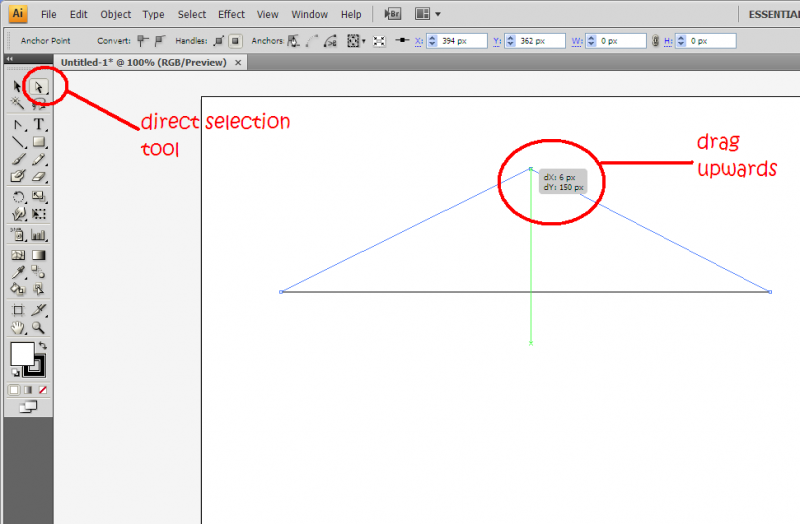
rainbow2 800x524 How to draw a rainbow with Adobe Illustrator

2. Next, using the direct selection tool (A) click on the middle anchor and drag it upwards. I dragged up about 150 px from the original distance.
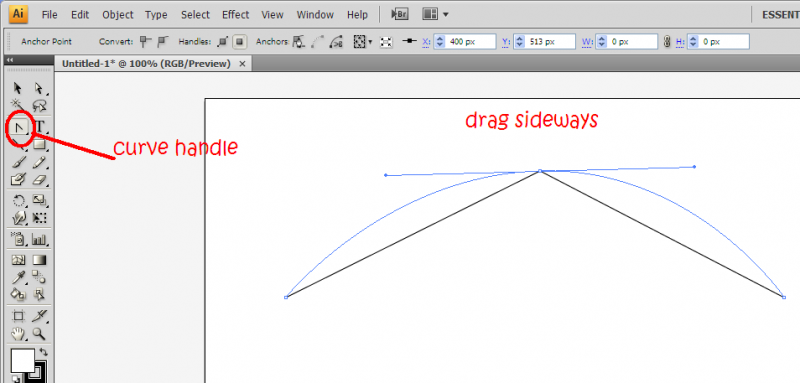
rainbow3 800x383 How to draw a rainbow with Adobe Illustrator

3. Using the curve handle (under the pen tool), drag the middle anchor sideways so you get a nice curve.
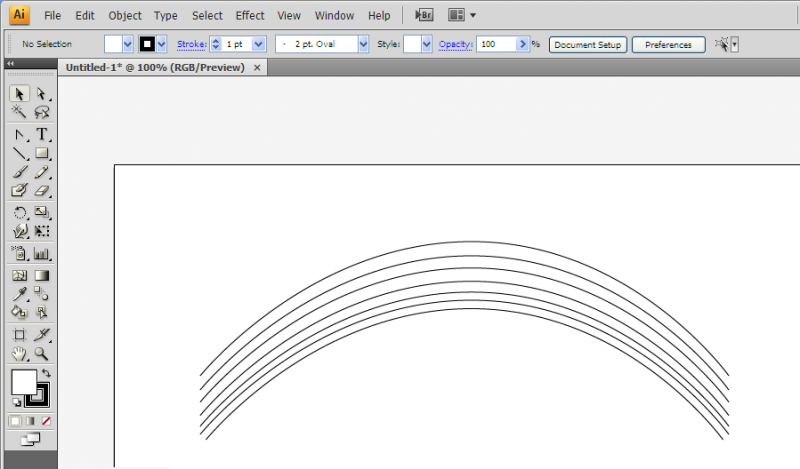
duplicate 7 times

4. Duplicate this seven times, one for every colour of the rainbow ;-) Be sure to reduce the gaps as you go along because red is the most visible the purple the least. You might want to use the direct selection tool to bend the curves a bit as you go along arranging the curves.
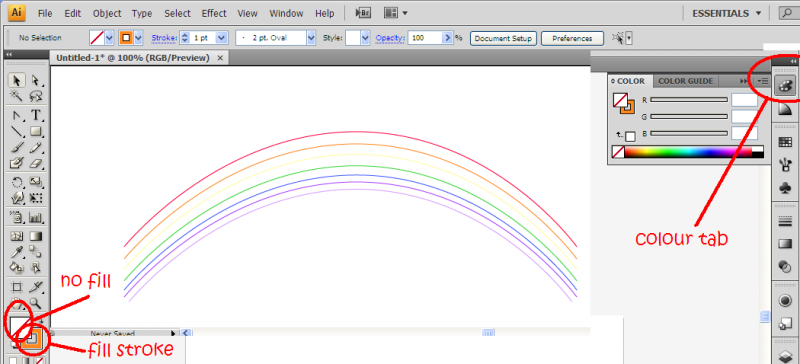
fill in colour

5. Colour each stroke from the top to the bottom as follows: Red>orange>yellow>green>blue>indigo>violet. No brownie points given as to why.
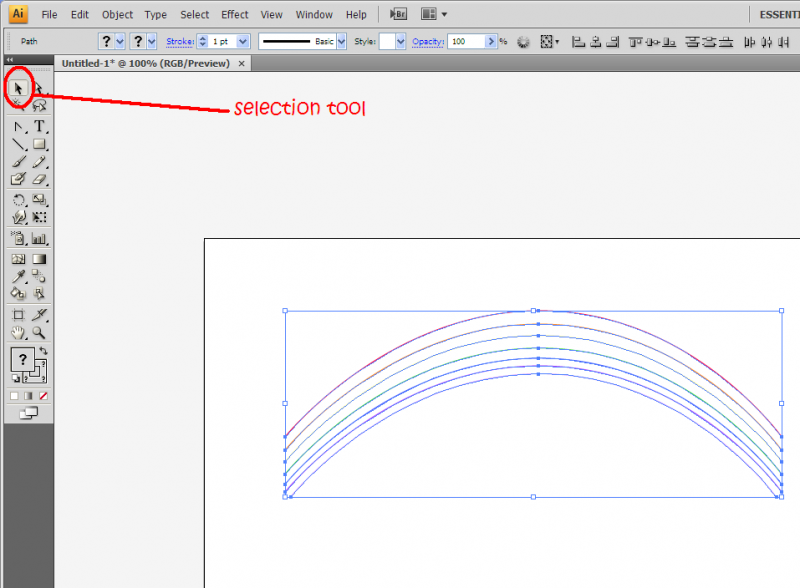
select all

6. Using the selection tool (V), select all the paths
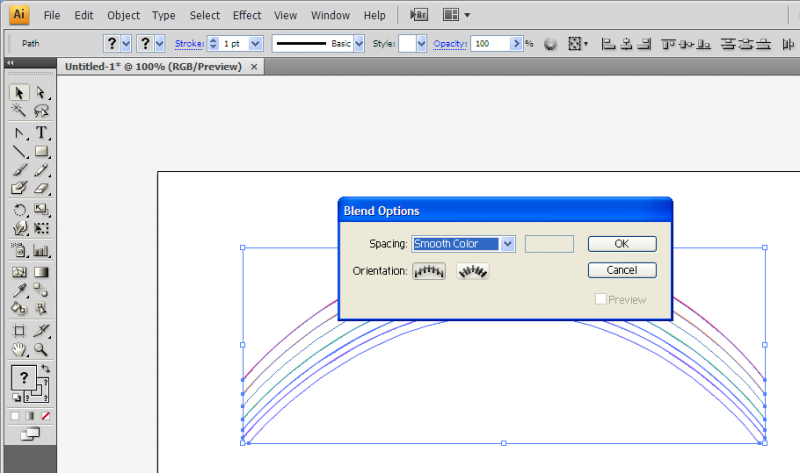
rainbow8 800x473 How to draw a rainbow with Adobe Illustrator

7. Next, go to Object>Blend>Blend options and choose smooth colour. Then, go to Object>Blend>Make (Alt+Ctrl+B)

rainbow10 How to draw a rainbow with Adobe Illustrator

There you have it, your own rainbow!


Like this post? Share it!

http://hungred.com/wp-content/plugins/sociofluid/images/digg_48.png http://hungred.com/wp-content/plugins/sociofluid/images/reddit_48.png http://hungred.com/wp-content/plugins/sociofluid/images/stumbleupon_48.png http://hungred.com/wp-content/plugins/sociofluid/images/delicious_48.png http://hungred.com/wp-content/plugins/sociofluid/images/furl_48.png http://hungred.com/wp-content/plugins/sociofluid/images/technorati_48.png http://hungred.com/wp-content/plugins/sociofluid/images/google_48.png http://hungred.com/wp-content/plugins/sociofluid/images/myspace_48.png http://hungred.com/wp-content/plugins/sociofluid/images/facebook_48.png http://hungred.com/wp-content/plugins/sociofluid/images/twitter_48.png

Related posts:

  1. 15 Excellent tutorial on Logo design in Adobe Illustrator 15 excellent tutorial that show you how can a logo...

This entry was posted on Tuesday, April 14th at 3:55 PM and is filed under Adobe Illustrator, How-to. You can follow any responses to this entry through the RSS 2.0 feed. Both comments and pings are currently closed.

Comments are automatic closed after certain period. Please send the author an email instead.